 StoreTabs
How it works
Nothing closes until it is saved
Most tab managers close first and hope the save worked. StoreTabs does it the other way around.
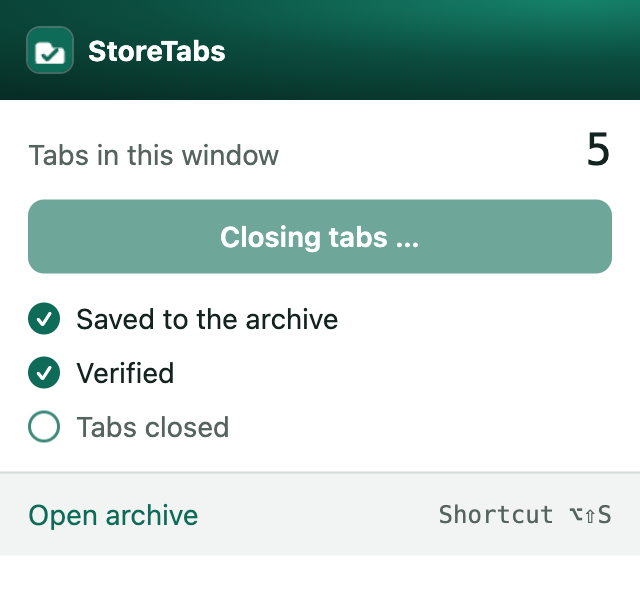
Save
Click the icon or press Alt+Shift+S.
Verify
Every tab is read back and checked.
Close
Only then are the tabs closed. If anything failed, they stay open.
Come back
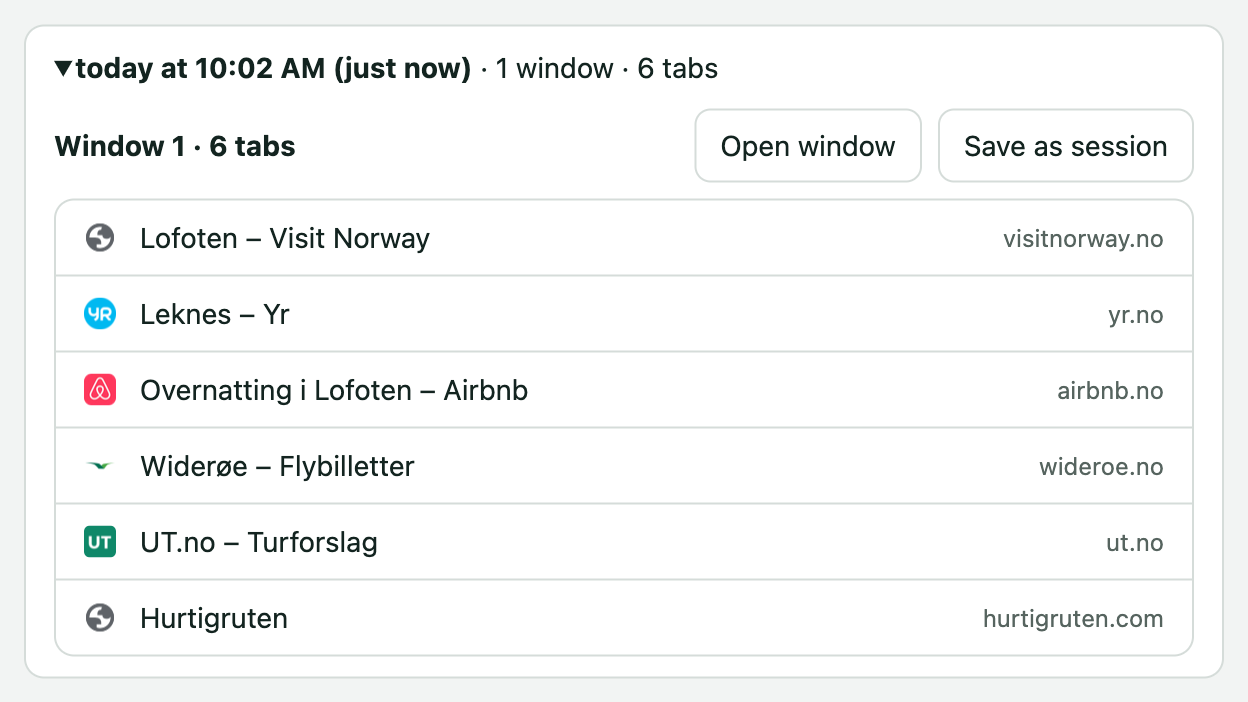
Open the whole window again, or a single tab.
Three copies, always
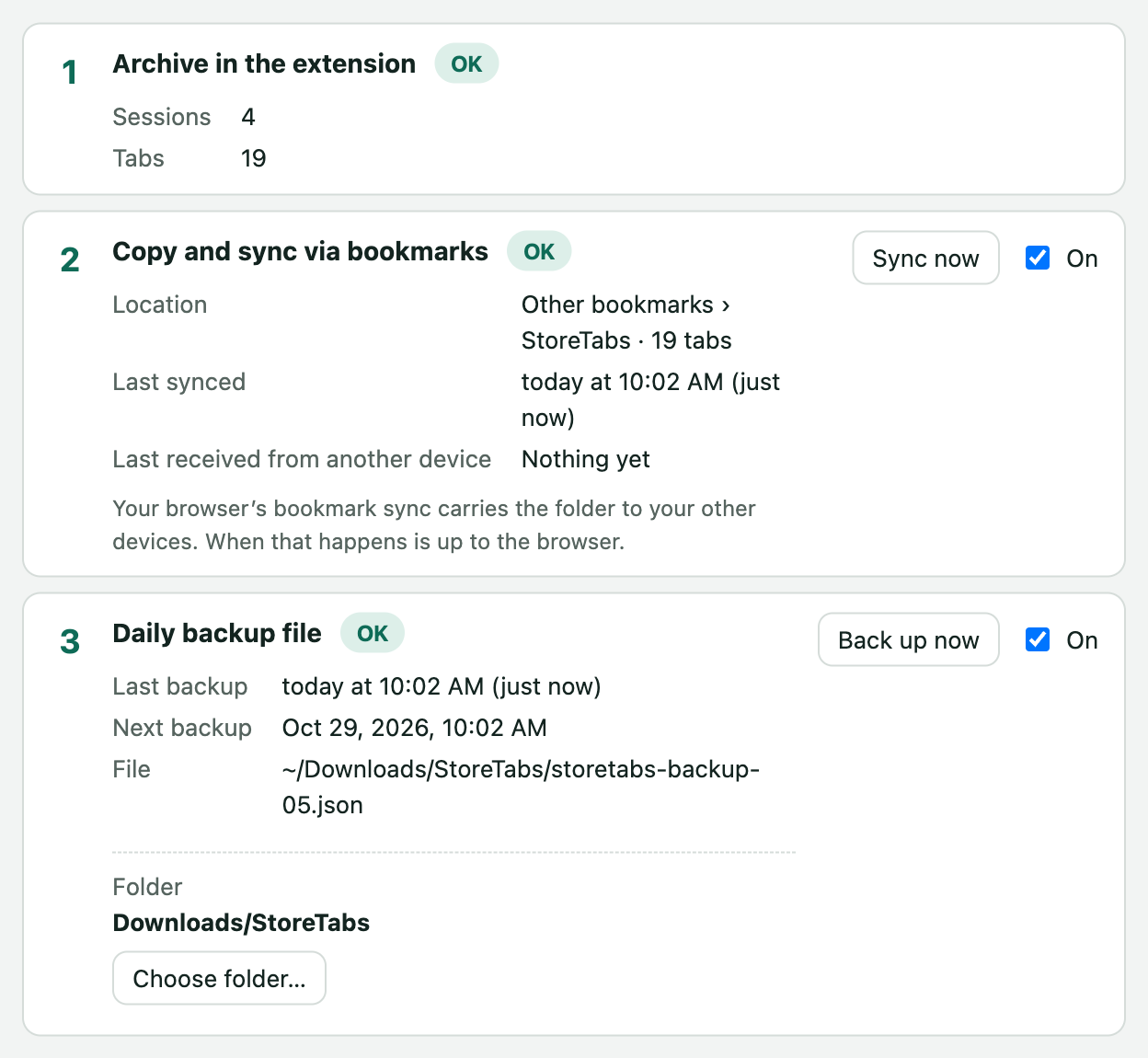
If one copy fails, two are left
- The archive, with earlier versions of every session.
- A bookmark folder that survives uninstalling.
- A daily backup file, in Downloads or a folder you choose, such as Dropbox.
Crash recovery
Crashed? Your tabs are still here
StoreTabs keeps track of the windows you have open. After a crash, open “Recently open” and get everything back.
- Kept for 7 days, on this computer only.
- Nothing ends up in your archive unless you save it.
Free sync
Your sessions on every computer. No account.
- Travels with your browser's own bookmark sync: Chrome, Edge, Brave and Firefox.
- No server of ours. Nothing is sent to us.
- Changes never overwrite each other. The older version stays in the history.
An archive you can use
Find it, tidy it, share it
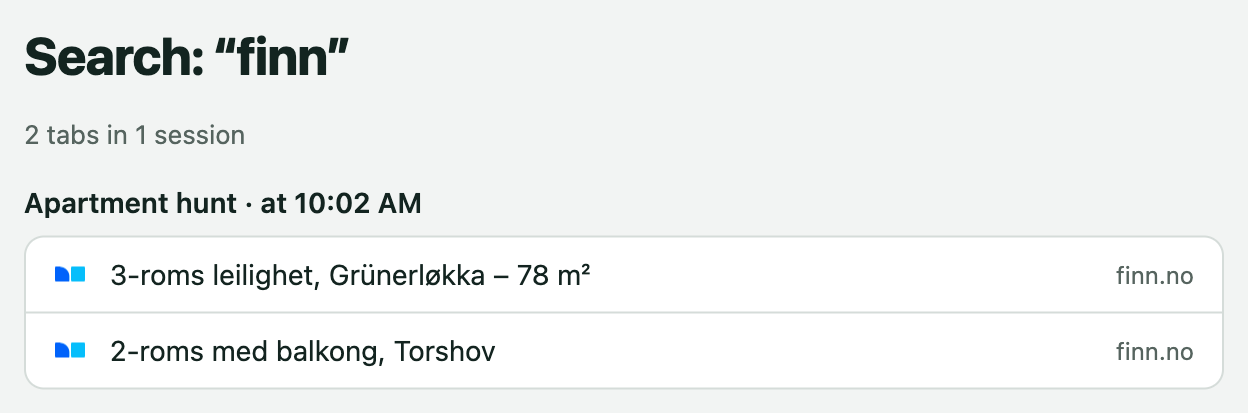
- Search every tab you have ever saved.
- Save all windows at once, or only the tabs you select.
- Tab groups come back with their names and colors.
- Remove, move and merge tabs between sessions.
- Copy a session as a list of links for email or notes.
Bring your tabs with you
Import from the tool you are leaving
Private by design
Built for trust, because that is the product
We never see your tabs
No servers, no account, no analytics, no ads. This website does not track you either.
Never sold quietly
If ownership of StoreTabs ever changes, you will be told 60 days in advance.
Your data, your formats
Export everything at any time. Your sessions are also plain bookmarks.
Coming later
StoreTabs Pro
Everything above stays free. Pro adds encrypted sync between different browsers and your sessions on your phone, both without an account, plus long-term version history and full-page saving. Planned price: $3/month or $24/year.
FAQ
Questions
Is StoreTabs free?
Yes. Saving, the archive, search, the three copies, sync between your computers and import are all free. A paid Pro version with encrypted cross-browser sync, your sessions on your phone, long-term version history and a full-page archive is planned for later.
Where are my tabs stored?
On your computer, in the extension's own database and optionally in a daily file in Downloads/StoreTabs, and in a “StoreTabs” bookmark folder. If bookmark sync is on in your browser, your browser vendor (Google, Microsoft or Mozilla) syncs that folder like any other bookmark. Nothing is sent to us. You can turn the bookmark copy off in the archive.
What happens if I uninstall it?
The bookmark folder and backup files stay. Install StoreTabs again and it restores your sessions from the bookmark folder automatically.
Which browsers does it work in?
Chrome first. Edge, Brave and other Chromium browsers work with the same extension, and Firefox follows. Safari is not supported.
How does sync work without an account?
Your sessions live in a bookmark folder, and your browser already syncs bookmarks between the computers you are signed in on. StoreTabs reads the folder on each computer and merges the sessions. Bookmark sync has to be turned on in your browser, and your browser vendor stores the folder just like your other bookmarks.
Can I import from OneTab or Session Buddy?
Yes. Export from the old tool and choose the file, or paste the OneTab export, under “Import tabs from another tool” in the archive.