 StoreTabs
 help
Everything StoreTabs can do, in short answers. Can't find what you need? Write to support@storetabs.app.
Save your tabs
Click the StoreTabs icon in the toolbar. It shows how many tabs the window has and suggests a name for the session: type your own if you like, then choose Save and close. StoreTabs saves the tabs, reads them back to check that every one was saved, and only then closes them. If anything went wrong, the tabs stay open.
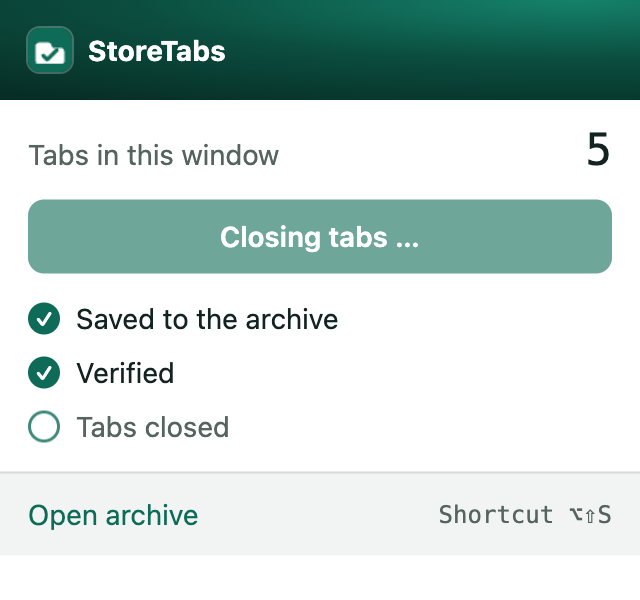
- Keyboard:
Alt+Shift+Ssaves and closes the window you are in (on a Mac:Option+Shift+S). - Keep the tabs open: choose Save without closing. Saving the same window again later updates that session instead of making a copy.
- All windows, or only some tabs: the popup also offers to save all your windows at once. To save only some tabs, select them first (Ctrl-click on the tabs, or Cmd-click on a Mac), then open StoreTabs.
- Right-click: right-click any page to save that tab, the window or all windows, or to add the page to a session you already have.
Get them back
Choose Open archive in the popup. The archive lists every session you have saved, newest first. Choose Open all to open the whole session again, or click a single tab to open just that one. Tab groups come back with their names and colors.
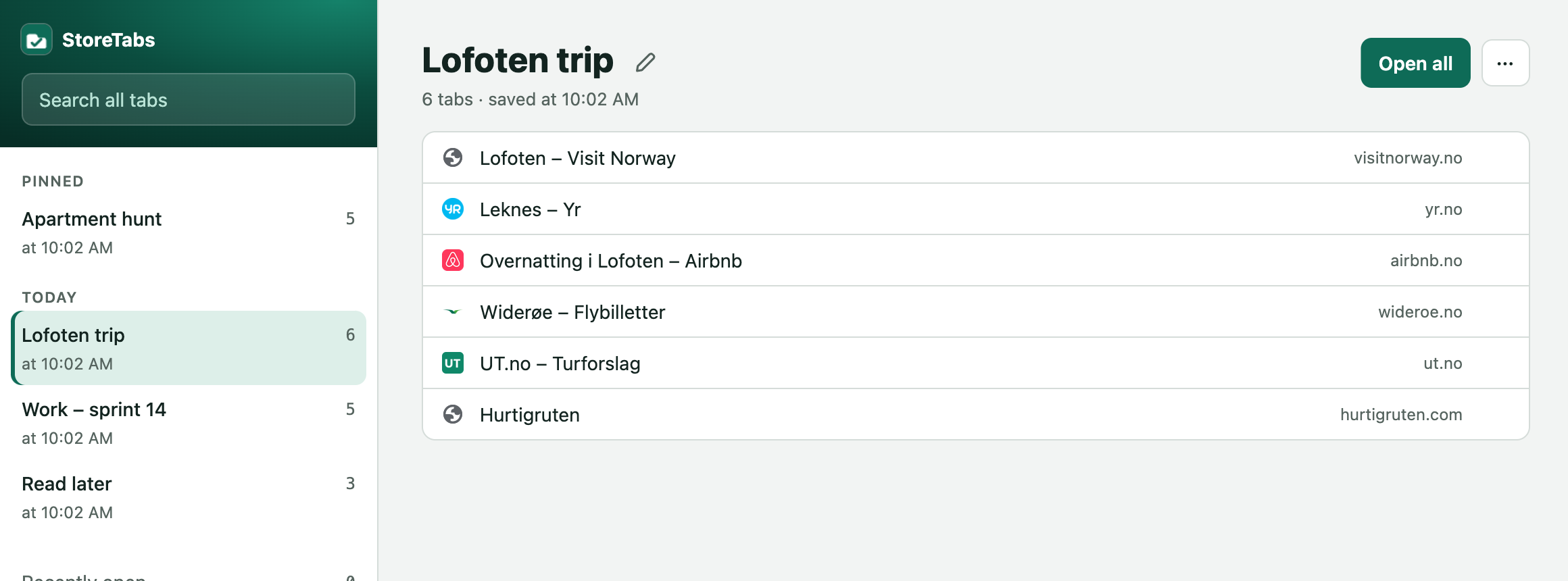
Large sessions open quickly: only the first tab loads until you click the others.
The popup also shows the sessions you saved most recently, ready to open with one click.
Find a tab
Type in Search all tabs at the top of the archive or in the popup. It searches the title and address of every tab you have ever saved.
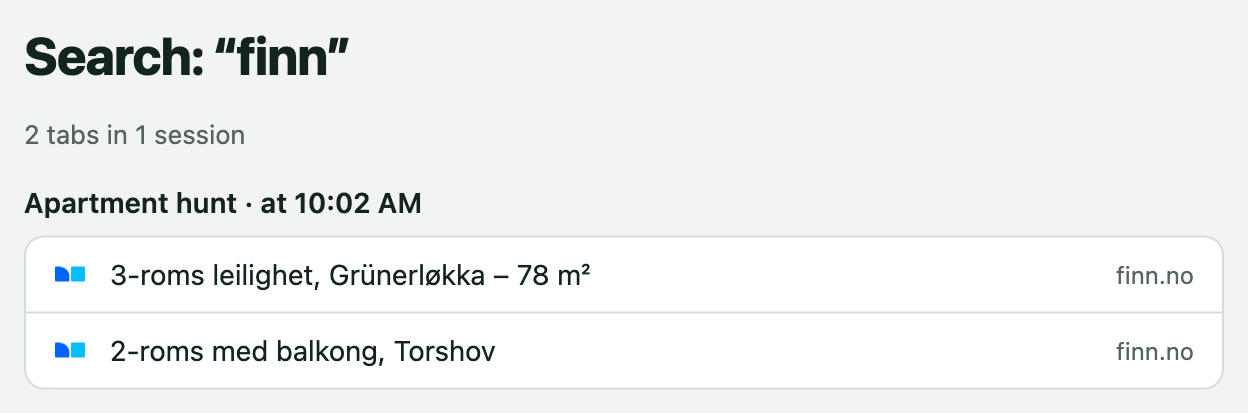
You can also search from the address bar: type st, a space and what you are looking for.
Restore tabs after a crash
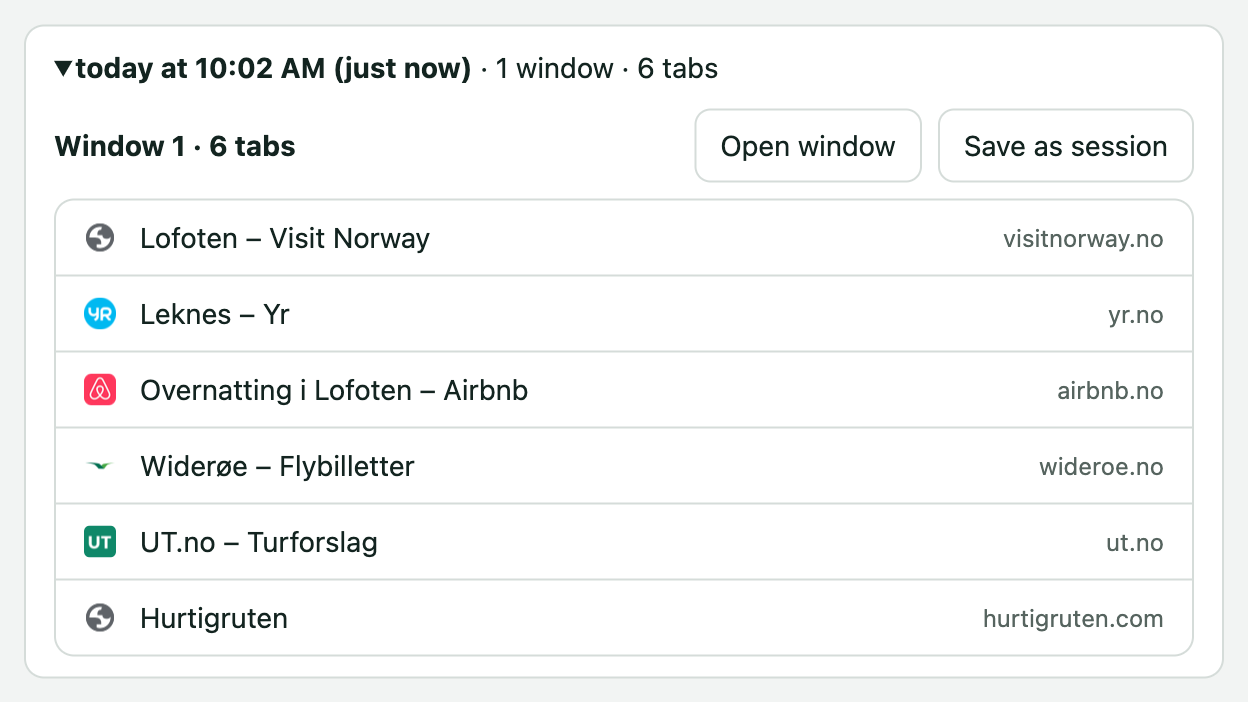
StoreTabs keeps track of the windows you have open, even ones you never saved. If the browser crashes or you close a window by mistake, open the archive and choose Recently open: open the whole window again, or save it as a session. Recently open is kept for 7 days, on this computer only, and nothing ends up in your archive unless you save it.
Keep the archive tidy
Click a session's name to rename it. In its ⋯ menu you can pin it to the top, merge it into another session, remove duplicate tabs, copy its links, and go back to an earlier version: StoreTabs keeps the earlier versions of every session, and restoring one also keeps the current version.
To move or remove single tabs, choose Edit tabs in the ⋯ menu, select the tabs, and choose Move to… or Remove.
Deleted sessions go to the Trash, where they stay for 30 days before they are deleted for good. Moving a session to the trash can be undone.
Your copies, and getting everything back
Your sessions are kept in up to three places. You can see them, and turn them on or off, under Where your tabs are stored in the archive:
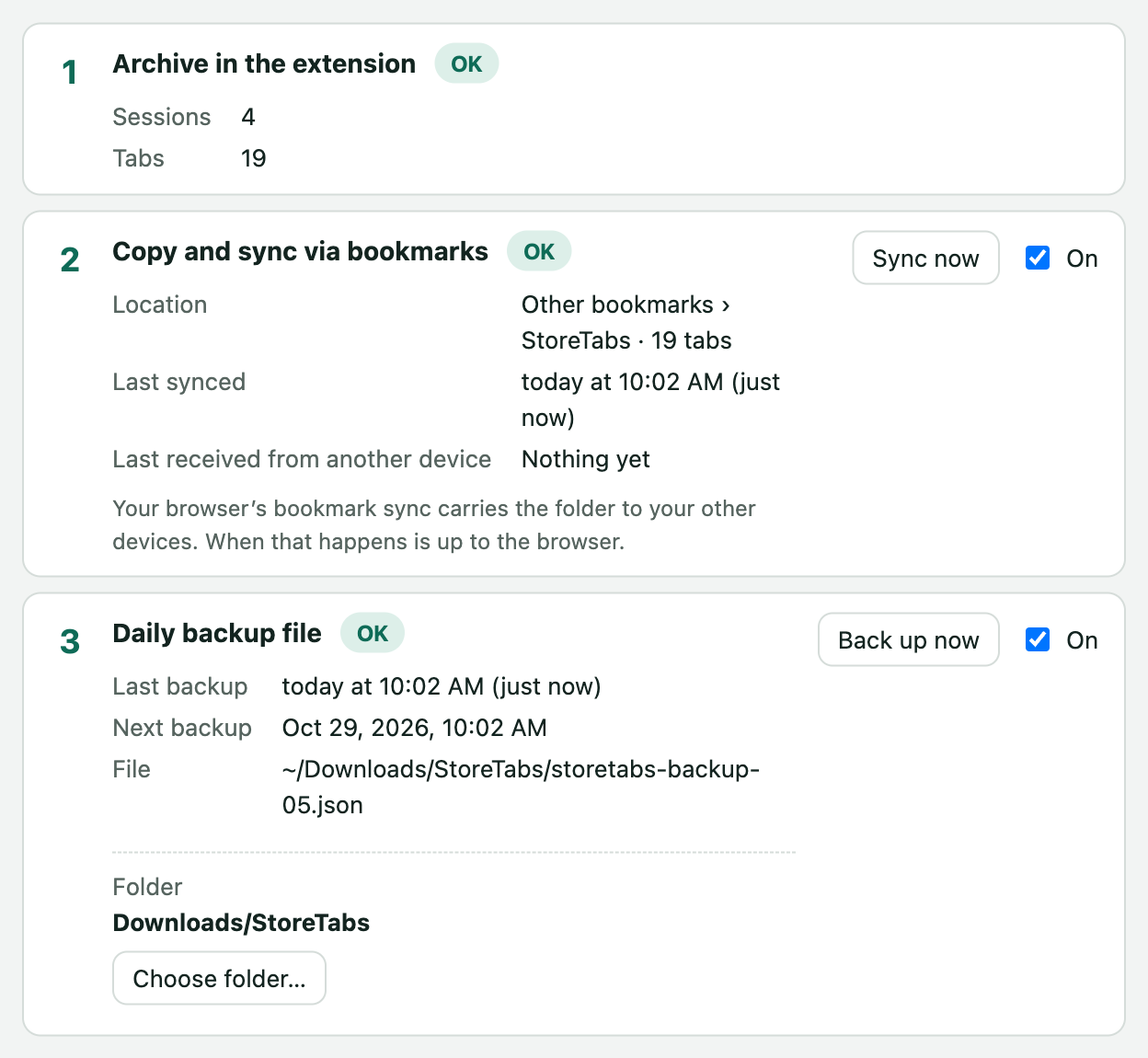
- The archive in the extension. Always on.
- A “StoreTabs” bookmark folder. On by default. It survives uninstalling StoreTabs, and it is what keeps your computers in sync.
- A daily backup file, in Downloads/StoreTabs or a folder you choose, such as one synced by Dropbox. Off until you turn it on. The last 10 days are kept.
If you reinstall StoreTabs, it finds the bookmark folder and restores your sessions by itself.
From a backup file: in the archive, choose Import tabs from another tool and pick the file. StoreTabs recognizes its own backups.
Export everything: under Where your tabs are stored, choose Export everything (JSON) to get all your sessions in one file.
Use StoreTabs on several computers
StoreTabs keeps its bookmark folder up to date, and your browser already syncs bookmarks between the computers you are signed in on. Install StoreTabs on each computer and turn on bookmark sync in the browser: your sessions show up everywhere, without a StoreTabs account. Changes never overwrite each other: if two computers change the same session, the older version stays in its history.
This works within one browser, for example Chrome on two computers. It does not sync between Chrome and Edge.
Move from another tool
In the archive, choose Import tabs from another tool and pick the file, or paste the list. StoreTabs reads exports from OneTab, Session Buddy, Toby, Tab Session Manager, Arc and Pocket, and bookmark files. It recognizes the format by itself, and the file is read on your computer.

Moving from Arc? Follow the Arc guide, it takes two minutes.
Share a session
Choose Share on a session, or Share this window as a link in the popup. StoreTabs copies a link that holds the tabs: nothing is uploaded. Anyone with the link can see the tabs, including the chat or mail service you send it through. The person who opens it sees the tabs on storetabs.app and can open them, or save them in their own StoreTabs.
To send the tabs as plain links instead, use Copy links in the session's ⋯ menu, or copy them as Markdown or as a list for email and documents.
Change the keyboard shortcuts
Open chrome://extensions/shortcuts in Chrome or edge://extensions/shortcuts in Edge. There you can change Alt+Shift+S, and give a shortcut to saving all windows.
Still stuck?
Write to support@storetabs.app. Say which browser you use and what you tried; a screenshot helps.